Select Tax Classes to be Routed in Routing Rule Templates
Stay is enhanced to allow users to select the individual tax classes to be routed when creating Routing Rule Templates. This feature can be used only when the Enhanced Routing Rules feature setting is enabled.
This feature can be used only when the Enhanced Routing Rules feature setting is enabled. Currently, routing rules cannot be applied when adjustments are made to charges that were routed to a folio/account.
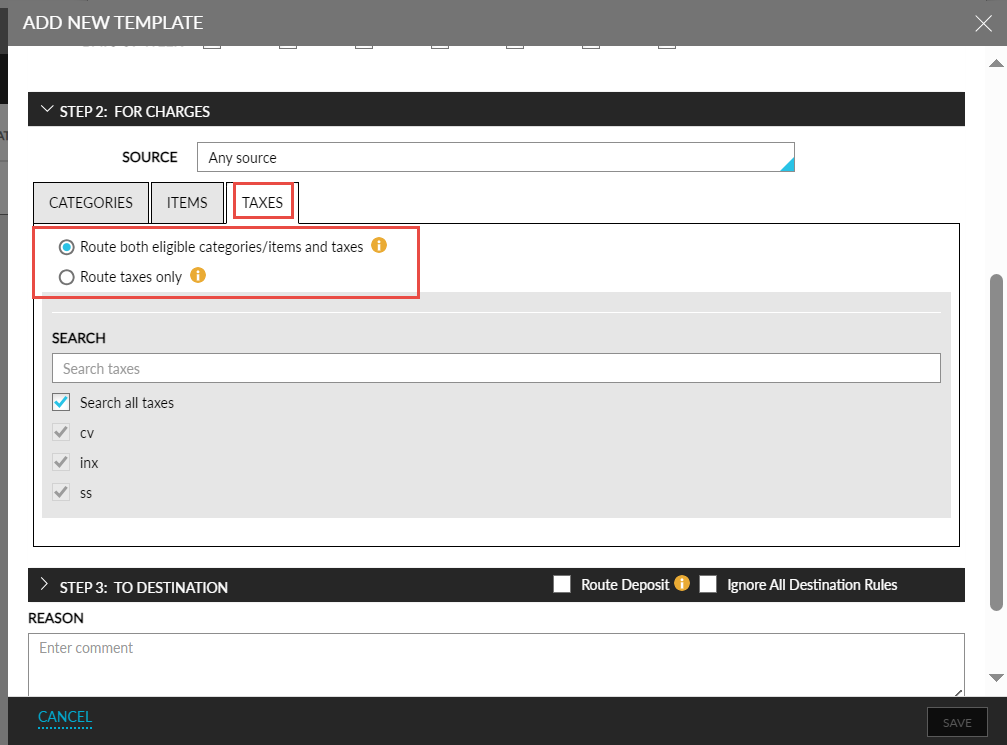
Users can choose from the following options:
-
Route both eligible categories/items and taxes
-
Route taxes only
Route Both Eligible Categories/Items and Taxes
The selected tax classes are routed only if they are associated with another transaction item (charge) included in the template. For example, if a template is created to route Nightly Room Charge and Occupancy Tax, when a user posts a Nightly Room Charge, the Occupancy Tax will be automatically routed along with the posted Nightly Room Charge. However, if the user posts an Upgrade Charge, the associated Occupancy Tax will remain in the original folio, as the Upgrade Charge transaction item is not included in the routing rule template.
Route Taxes Only
The selected tax classes are always routed, regardless of whether the associated transaction item (charge) is included in the routing rule template or not. For example, if a template is created to route Nightly Room Charge and Occupancy Tax, when a user posts an Upgrade Charge, the associated Occupancy Tax will be routed to the destination folio and the Upgrade Charge will remain in the original folio.
Users can choose to route both Inclusive and Exclusive tax classes. Users can also choose to create routing rule templates in any of the following ways:
-
By selecting a category or item and one or more tax classes
-
By selecting a category or item without selecting a tax class
-
By selecting a tax class alone
When users adjust a charge for which the tax is configured to be routed to another folio/account by selecting the Route taxes, irrespective of categories or items option in the routing rule template, the updated tax amount for the adjusted charge does not get routed to the destination folio/account.
The Comp routing rule templates will continue to function as per the existing functionality. The tax amount is recorded in the following reports as per the existing functionality:
-
Ledger Activity Detail (Dynamic)
-
Ledger Detail (Dynamic)
-
Ledger Summary (Dynamic)
-
On the books (Dynamic)
-
Transaction Item Detail (Dynamic)
-
Transaction Item Summary (Dynamic)
-
Transactions Journal (Dynamic)
-
Trial Balance (Dynamic)
-
Tax Posting (Legacy)
To support this enhancement, the following changes have been made:
-
A new tab, Taxes, is added to the For Charges section of the Routing Rule Templates, that displays the following options:
-
Route taxes for eligible categories or items only
-
Route taxes, irrespective of categories or items
-
-
The Route taxes for eligible categories or items only option is enabled, and all the available inclusive and exclusive tax classes are selected by default when creating a new template, and when modifying an existing template.
-
The tax transaction items created in Guest Accounting for the taxes created in Platform/Core UI, and the transaction items marked as Report as Tax in Guest Accounting are not displayed in the Items tab.
-
Users can search for a particular tax class by keying in the name of the tax class.
-
When users create a template by selecting the Route taxes, irrespective of categories or items option and a tax class alone, the Split By section under step 3 of the template, that is, the To Destination panel, will not be displayed.
-
When users create a template by selecting the Route taxes for eligible categories or items only option and a tax class alone, the Split By section is displayed. The tax amount is routed according to the split by option configured by the user.